
Now all you have to do is put everything back together. This is actually pretty easy. First you need to screw the controller onto the back of the drive.
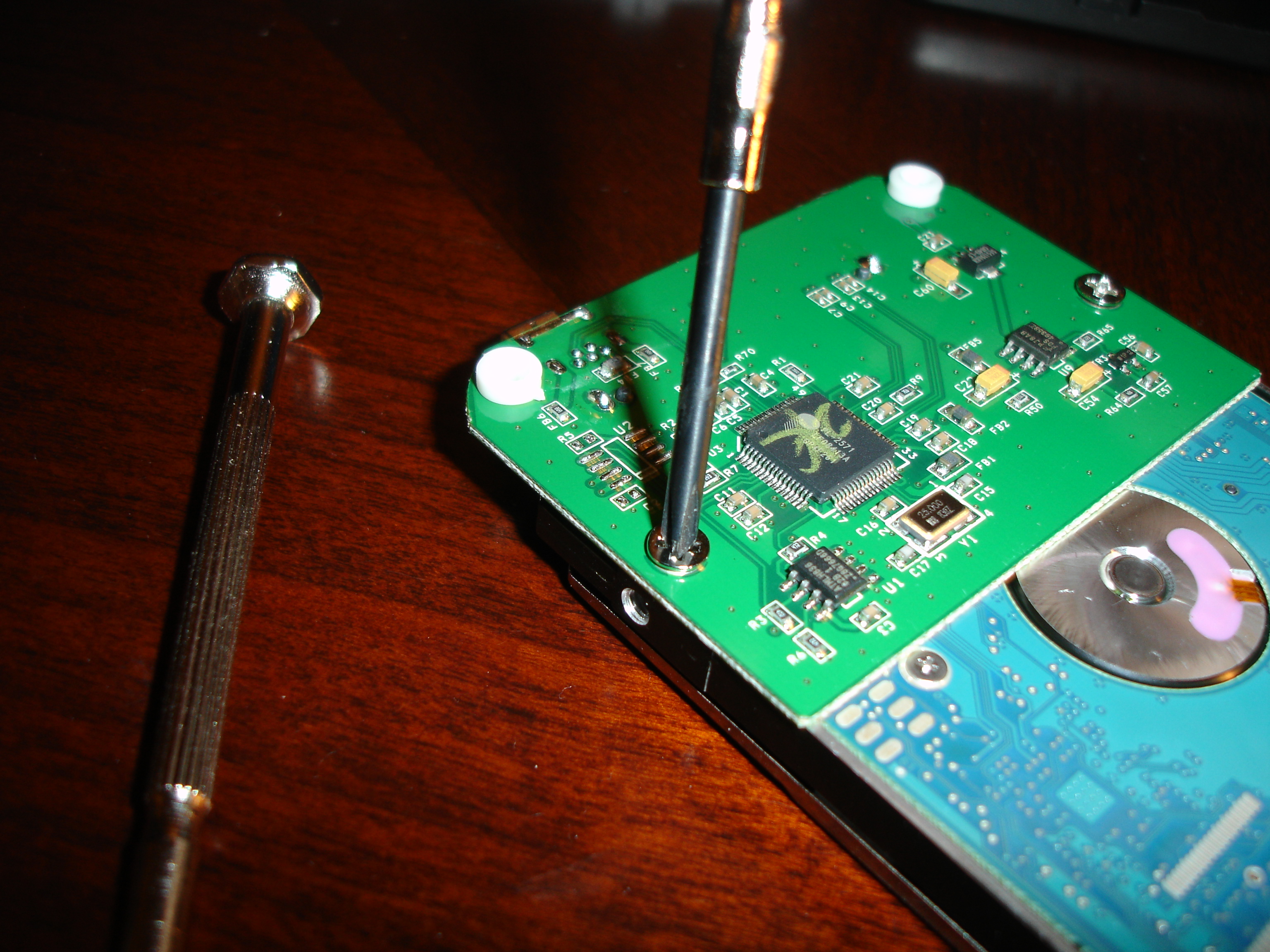
Now you just need to put the drive and controller into the bottom part of the enclosure, which has two pegs that should easily slide into holes that are on the controller. After that, you snap the chrome/plastic border back on, secure the drive with the tapes (if you haven't lost them like me!) and snap the top part of the enclosure back on. All you have left now are the screws you removed initially. Just screw them back in and you're good to go! You should be able to plug in your drive and have your OS pick it up. If you're using a brand-new drive, it's probably not formatted so you'll have to format it to FAT32 (so that you can use it on any OS. The limitation is that you can't store files larger than 4GB). Look up the documentation specific to your OS for instructions on how to do that. I know that on Windows you can use Disk Manager to format your drive, while on Ubuntu you can use gparted to do the same.
That's it! I hope you found this "how to" useful!
Thanks a lot. I did open mine to check the guts, and found out that the external cable was to blame!
@gabriel villalobos
I’m glad you got it working!
Thank you so much for your detailed directions AND photos.
Helped a lot, made my day !!!
Best regards.
@XEQtor
No worries! Glad I was able to help!
hey guys,, i have 1 like this,,, but i want to use it as internal hard drive,, can it be possible? because i have acer laptop,, and the hard disk is not ok anymore,,, my laptop is acer 4367z…
@amir
It is a 2.5″ drive, so it is the same form-factor as a laptop drive; it should work.
hey I can’t remove the plastic chrome cover. can you make a video of this or provide a detail instruction?
i figured it out. my problem is that my computer can’t recognize my hard drive. I tried also tried it on my ps3, but nothing happened. I need to recover my files. it is very important
i also have a problem with my imation portable harddrive…
it detects, icon and the message “new hard drive found” appears, but it doesnt “AUTOPLAY” and when i go to “MY COMPUTER” no drive [F] found… pls help me with this problem.. thanks in advance…
Fritz Rigonan and Vivn : I have the same problem as you guys have. And so I finally decided to open the black and silver bordered case. I opened the 4 screws given on two sides but the Case is very hard to remove. Can someone send me either the video or pics of how to open it.
I am in real need as I have all the important data in that and in next week I have presentation to be shown.
Please Please Help..!!
Regards
UmanG [[email protected]]
Thanks dude – you really helped me out there 🙂
Sorry for taking so long to respond.
@Fritz Rigonan
I think your drive might have had actual hardware issues. This was the same thing that I was seeing with my drive.
@hygie ryan fernandez
You must have a hardware issue with your drive as well. Try running some SMART tools on it to see if it has any issues.
@Umang N Samani
I hope your presentation went ok 🙂 I don’t know how I can explain how to remove the case any better. You pretty much have to shove a small flat-headed screwdriver in between the chrome trim and the case right behind the USB icon (don’t shove it in too hard or you’ll damage the controller). Push in towards the body of the drive and then upwards. This should make the cover pop out.
@Jules
Glad to help 🙂
Photos of opened Apollo box is here (with no instructions) – part of review
http://www.testfreaks.com/blog/review/imation-apollo-500gb-25-portable-hard-drive/
how can i open the drive..,i already unscrew it but still i couldn’t open
how can i open the drive..,i already unscrew it but still i couldn’t open..,same hard drive
awesome.. thanks for the help..
kudos.
Thanx aton man this link is really helpful guys thanx a lot to the creator of this link…..
Simple Perfect! It Helps a lot. Thanks
Thanks a lot. I bought two of these in 2008 and both failed. Your instructions with pictures were perfect for my needs.
succeeded, following your guide. great photos and clear description
Dear Concerns,
when i used portable hard disk 500gb, imation in laptop delli5, the charger of laptop i3 was used. meanwhile i was copping the file from laptop to my portable hard disk at that time copying process is slow. i removed the portable hard disk. and i used it but any pc can’t read it even its light is ok.
pls send me the process for reopen my portable hard disk.
Awesome How-To. Was able to swap my 250GB for a 750GB drive. Thanks!
May I know how to open the casing of Apollo Imation external hard disk? Can someone help me please….,
i just finished opening up my apollo box.. the screw was hidden at the back of the rubber thingy.. after unscrewing it just slide it to the side and it will just pop-out…
To get the lid off, I found there are two little slots at the front (one where you said, the other towards the right-hand side as you face the usb port on the left) and three at the rear (left, middle, right)
Thank you
is very well
I had two of these bad boys weighing in at 250GB each! One had a faulty controller and now I’ve retrieved the data from it using the other controller and putting it on something larger. Nice one dude…still work after all these years (as you would expect)
thanks so much!!!!
I did it!!!!